Welcome to our video tutorial on how to use the IF and AND formula in Excel to determine whether students have passed or failed based on attendance and marks. In this tutorial, we will be walking you through each step of the process, from creating a new column in your Excel sheet to applying the formula to the rest of the students. We will also be discussing the importance of data analysis and decision making in today's world, and how mastering the IF and AND formula can help you make better decisions with your data. So, whether you're a student, a teacher, or a professional, this tutorial will provide you with the knowledge and skills you need to analyze your data and make data-driven decisions. So, grab your computer, and let's get started!

Mastering the IF Formula: A Guide to Calculating Incentives in Excel
In the world of sales, incentives can be a powerful motivator for employees to reach their targets and exceed them. One way to calculate these incentives is by using the IF formula in Excel.
The IF formula is a logical function in Excel that allows you to test a condition and then return a value based on the outcome of that test. In the context of incentive calculation, this can be used to determine the amount of incentive an employee should receive based on their sales performance.
To use the IF formula for incentive calculation, you'll first need to set up a spreadsheet with the following columns: employee name, sales and incentive. Next, you'll need to determine the criteria for calculating the incentive. This could be based on a percentage of sales or a fixed amount for reaching or exceeding the sales target.
Once you have the criteria in place, you can use the IF formula to test whether an employee's actual sales meet or exceed the target and calculate the incentive accordingly. For example, if the sales target is Rs.50000 and the incentive is 5% of sales for reaching or exceeding the target, the formula would be:
=IF(B2>=A2,B2*5%, "")
We can see step by step procedure with images
1.Organize the data in tabular form with columns as Employee name, Sales and Incentive

2.Start typing if formula with logical test as shown in image.

3.If logical test is true then 5% of incentive to be calculated. Hence type as per below image.


Video tutorial- Pass or Fail: Using the IF Formula to Calculate Student Results in Excel
Please watch a video to learn if formula
Pass or Fail: Using the IF Formula to Calculate Student Results in Excel
.png)
.png)
.png)
.png)
.png)
.png)
How to calculate grades of students using Excel | एक्सेल वापरून विद्यार्थ्यांच्या ग्रेडची गणना कशी करायची
We can calculate grades by using If formula.
What is if formula?
"If" सूत्र म्हणजे काय?
The IF function in Excel is used to perform a logical test and return one value if the test is true and another value if the test is false. The basic syntax of the IF function is as follows:
=IF(logical_test, value_if_true, value_if_false)
The "logical_test" is a comparison or logical statement that returns either TRUE or FALSE. The "value_if_true" is the value that is returned if the logical test is true. The "value_if_false" is the value that is returned if the logical test is false.
For example, if you wanted to test if a cell in a spreadsheet contains a value greater than 100 and return "Greater than 100" if true and "Less than or equal to 100" if false, you would use the following formula:
=IF(A1>100, "Greater than 100", "Less than or equal to 100")
where A1 is the cell containing the value to be tested.
Excel मधील IF फंक्शन तार्किक चाचणी करण्यासाठी आणि चाचणी सत्य असल्यास एक मूल्य आणि चाचणी खोटी असल्यास दुसरे मूल्य परत करण्यासाठी वापरली जाते. IF फंक्शनची मूलभूत वाक्यरचना खालीलप्रमाणे आहे:
=IF(लॉजिकल_टेस्ट, value_if_true, value_if_false)
"लॉजिकल_टेस्ट" हे एक तुलना किंवा तार्किक विधान आहे जे सत्य किंवा असत्य मिळवते. "value_if_true" हे मूल्य आहे जे तार्किक चाचणी सत्य असल्यास परत केले जाते. "value_if_false" हे मूल्य आहे जे तार्किक चाचणी चुकीचे असल्यास परत केले जाते.
उदाहरणार्थ, जर तुम्हाला स्प्रेडशीटमधील सेलमध्ये १०० पेक्षा जास्त मूल्य आहे की नाही हे तपासायचे असेल आणि खरे असल्यास "100 पेक्षा मोठे" आणि असत्य असल्यास "100 पेक्षा कमी किंवा बरोबरीचे" परत करा, तर तुम्ही खालील सूत्र वापराल:
=IF(A1>100, "100 पेक्षा जास्त", "100 पेक्षा कमी किंवा समान")
जेथे A1 हा सेल आहे ज्यामध्ये चाचणी करायची आहे.
Today let us see how ifs formula works.
(Click here to learn If formula with example)
Today we will learn how to use ifs formula to analyze the result of students. We have marks of seven students and we want to show the result of students in Grade column by using multiple conditions.
आज आपण विद्यार्थ्यांच्या निकालाचे विश्लेषण करण्यासाठी ifs फॉर्म्युला कसा वापरायचा ते शिकू. आमच्याकडे सात विद्यार्थ्यांचे गुण आहेत आणि आम्हाला खालील अटी वापरून ग्रेड कॉलममध्ये विद्यार्थ्यांचा निकाल दाखवायचा आहे.

Please follow below steps to analyze results using if formula
इफ फॉर्म्युला वापरून निकालांचे विश्लेषण करण्यासाठी कृपया खालील चरणांचे अनुसरण करा
Step 1. Start typing ifs formula in 1st cell of Grade column as =ifs and type 1st condition as shown in below table and press comma(,). Once you press comma you can start writing second condition.
ग्रेड कॉलमच्या 1ल्या सेलमध्ये ifs फॉर्म्युला =ifs म्हणून टाइप करणे सुरू करा आणि खालील टेबलमध्ये दाखवल्याप्रमाणे 1ली कंडिशन टाइप करा आणि स्वल्पविराम(,) दाबा. एकदा तुम्ही स्वल्पविराम दाबल्यानंतर तुम्ही दुसरी अट लिहायला सुरुवात करू शकता.

Step 2.Type second condition in a formula as shown in below table. After completion of 2nd condition press comma(,).
खालील सारणीमध्ये दर्शविल्याप्रमाणे सूत्रामध्ये दुसरी स्थिती टाइप करा. दुसरी अट पूर्ण झाल्यानंतर स्वल्पविराम(,) दाबा.

Step 3. Once you enter comma(,), you can start writing 3rd condition. So start writing condition as shown in below table
एकदा तुम्ही स्वल्पविराम(,) एंटर केल्यावर तुम्ही 3री अट लिहायला सुरुवात करू शकता. तर खालील तक्त्यामध्ये दर्शविल्याप्रमाणे अटी लिहिण्यास सुरुवात करा
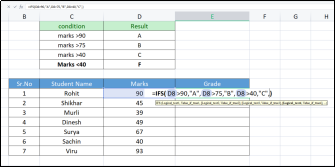
Step 4. This step is crucial step in this formula. We know that Below 40, grade should be F. So to mention that this is the last condition, type ‘True’ as shown in below table.
ही पायरी या सूत्रातील महत्त्वाची पायरी आहे. तुम्हाला माहीत आहे की 40 च्या खाली, ग्रेड F असावा. त्यामुळे ही शेवटची अट आहे हे नमूद करण्यासाठी, खालील तक्त्यामध्ये दाखवल्याप्रमाणे 'True' टाइप करा.

Step 5. Once you type ‘True’, you will write a final condition. This condition will mean that if all 1st three conditions are not true then “F” will be printed. Type the condition and press Enter. Please refer below table.
एकदा तुम्ही 'True' टाइप केल्यावर तुम्ही अंतिम अट लिहाल. या स्थितीचा अर्थ असा होईल की जर सर्व 1ल्या तीन अटी सत्य नसतील तर "F" छापले जाईल. कंडिशन टाइप करा आणि एंटर दाबा. कृपया खालील सारणी पहा.


Step 6. Do the selection from 1st cell in Grade column to last cell in Grade column and press Ctrl+D. We will get the result of each student.
ग्रेड कॉलममधील पहिल्या सेलपासून ग्रेड कॉलममधील शेवटच्या सेलपर्यंत निवड करा आणि Ctrl+D दाबा. प्रत्येक विद्यार्थ्याचा निकाल मिळेल.

In this way even if you have 100 or more than 100 students data, you can calculate their grades in few minutes.
अशा प्रकारे तुमच्याकडे 100 किंवा 100 पेक्षा जास्त विद्यार्थ्यांचा डेटा असला तरीही, तुम्ही काही मिनिटांत त्यांच्या ग्रेडची गणना करू शकता.
We can use the same if formula for deciding the result as Pass or Fail.
Top 30 Most Useful Excel Shortcut keys
| ||
1 | Ctrl + C | Copy |
2 | Ctrl + V | Paste |
3 | Ctrl + X | Cut |
4 | Ctrl + Z | Undo |
5 | Ctrl + Y | Redo |
6 | Ctrl + A | Select all |
7 | Ctrl + F | Find and Replace |
8 | Ctrl + P | Print |
9 | Ctrl + S | Save |
10 | Ctrl + N | New workbook |
11 | Ctrl + O | Open workbook |
12 | Ctrl + W | Close workbook |
13 | Ctrl + Tab | Switch between open workbooks |
14 | Ctrl + Shift + Tab | Switch to previous workbook |
15 | Ctrl + Page Up | Switch to previous worksheet |
16 | Ctrl + Page Down | Switch to next worksheet |
17 | Ctrl + Home | Go to the beginning of a worksheet |
18 | Ctrl + End | Go to the end of a worksheet |
19 | Ctrl + Arrow keys | Move to the edge of a data range |
20 | Shift + Arrow keys | Select a range of cells |
21 | Ctrl + Shift + Arrow keys | Select a range of cells and all cells in between |
22 | F2 | Edit cell |
23 | F5 | Go to a specific cell or range |
24 | F7 | Spell check |
25 | F11 | Create a chart |
26 | Alt + = | Auto-sum |
27 | Ctrl + Shift + & | Apply border to selected cells |
28 | Ctrl + Shift + _ | Remove cell borders |
29 | Ctrl + Shift + + | Insert a new row or column |
30 | Ctrl + - | Delete selected row or column |
In this way, using shortcut keys can help to improve your productivity as you don't have to spend time looking for the command you need, this can add up over time, especially when working on large projects or with large amounts of data. So, mastering Excel shortcut keys can make you a more efficient and effective user of the software.
-
 In the world of sales, incentives can be a powerful motivator for employees to reach their targets and exceed them. One way to calculate th...
 -
 Excel is a powerful tool that allows you to organize, analyze, and visualize data in various ways. One of the most fundamental functions in ...
 -
मैत्री वरील कविता दुःख अडवायला उंबऱ्यासारखा , मित्र वनव्यामध्ये गारव्यासारखा……… १ वाट चुकणार नाही जीवनभर कोणी, एक तू मित्र कर आरशासारखा, मित...